Two-Factor Authentication (2FA)
To secure the login, byronFM uses two-factor authentication via an authenticator app.
Prerequisite: Authenticator app
An authenticator app must be installed on the smartphone. We recommend the Microsoft Authenticator:
| Platform | Link |
|---|---|
| Microsoft Authenticator | microsoft.com/de-ch/security/mobile-authenticator-app |
Alternatively, Google Authenticator and other TOTP-compatible apps also work.
Setting up the app for the first time
Step 1 – Open the app
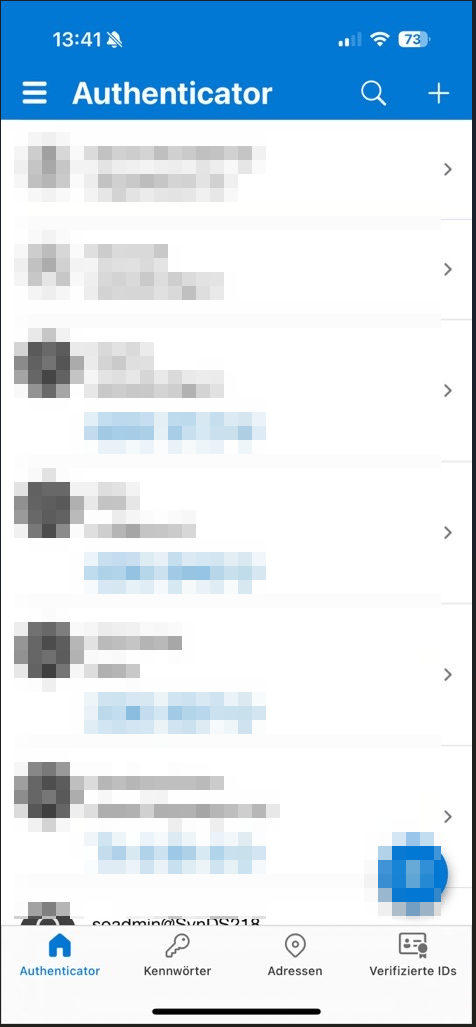
Open the authenticator app on the smartphone. The app shows a list of existing accounts:
Step 2 – Add a new account
- Tap + in the app.
- Select "Other account (Google, Facebook, etc.)".
Step 3 – Scan the QR code
byronFM displays the QR code directly in the browser:
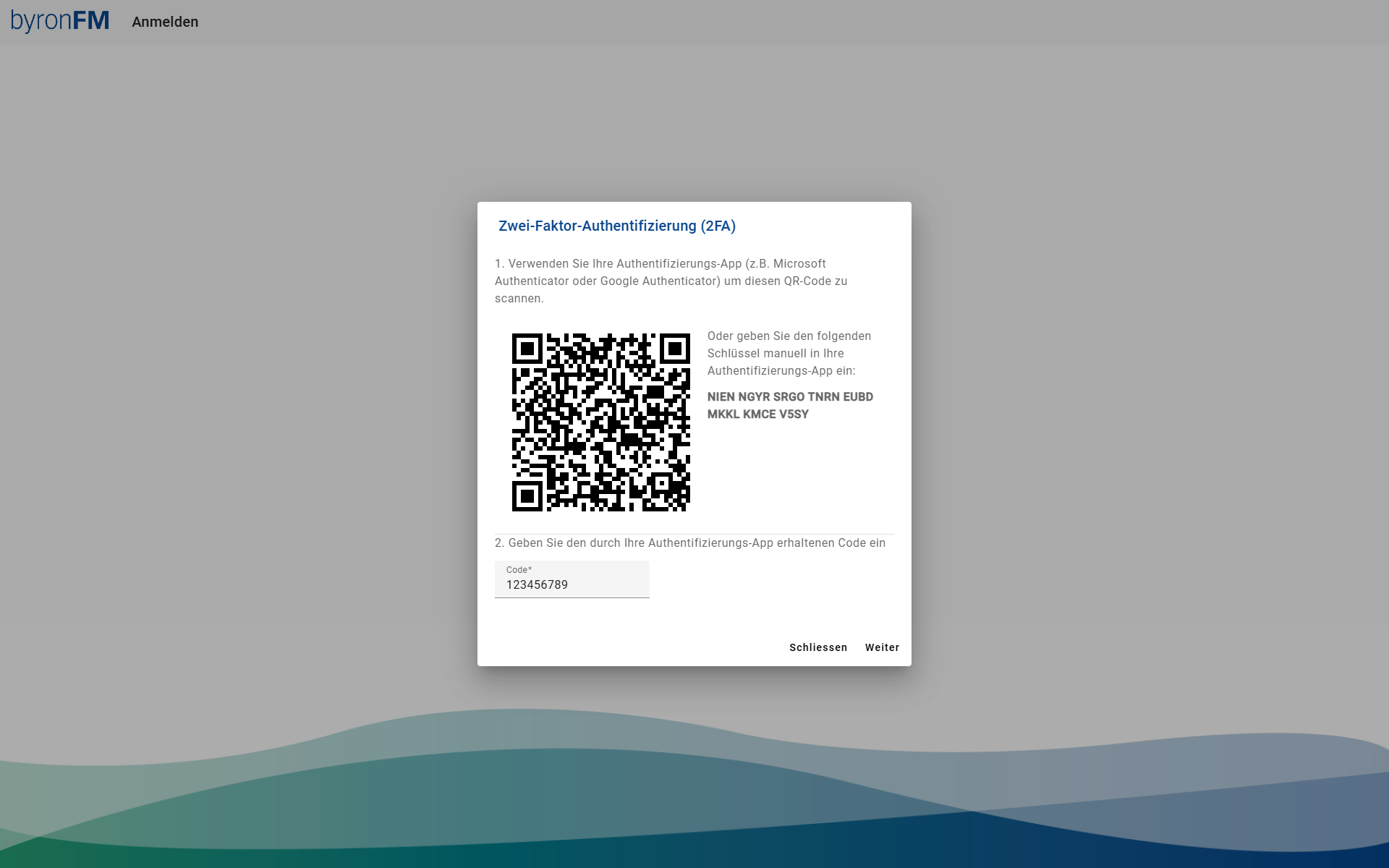
- Scan the QR code with the authenticator app.
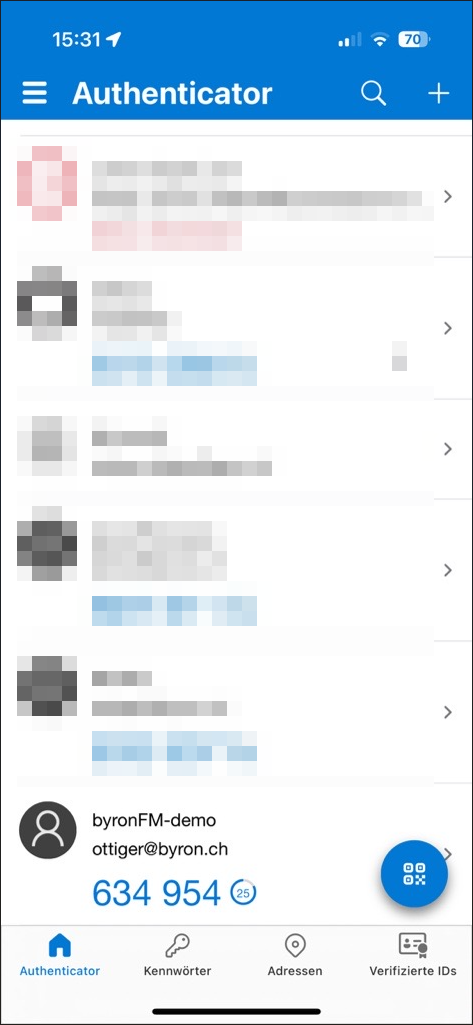
- The new account appears in the app – here using the byronFM demo account as an example:
Step 4 – Enter and confirm the code
- Enter the currently displayed 6-digit code from the app into the code field in byronFM.
- Press Next.
The code is valid for only about 30 seconds. If it expires, simply use the new code.
Daily use
After the initial setup, the following applies at every login:
- Enter your user name + password → press Login.
- Open the authenticator app.
- Enter the current 6-digit code → press Next.